
On this page, you can find information about the purpose of the 'All Assets' page in the 'Assets' menu and the available options on this page.
Contents
General
The 'All Assets' page, located under 'Assets' in the menu on the left, provides an overview of all assets in McMain Online. From this page, you can open asset detail pages, create breakdown work orders and work orders, or edit one or more assets.
Image: 'All Assets' page
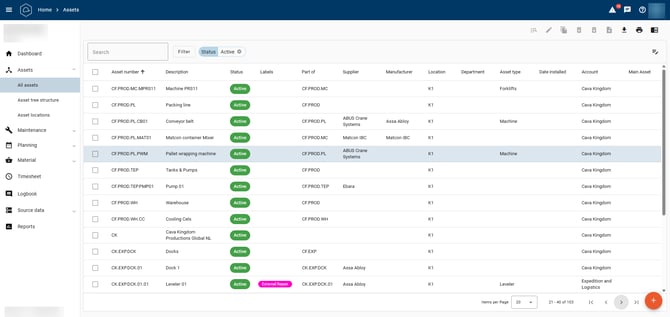
The main section of the 'All Assets' page contains a list of assets. You can use the search function, filters, and manual scrolling to find a specific asset or group of assets. The application uses the text entered in the search field to search through asset information. For example, you can search by asset description, asset number, supplier name, etc.
Image: asset list
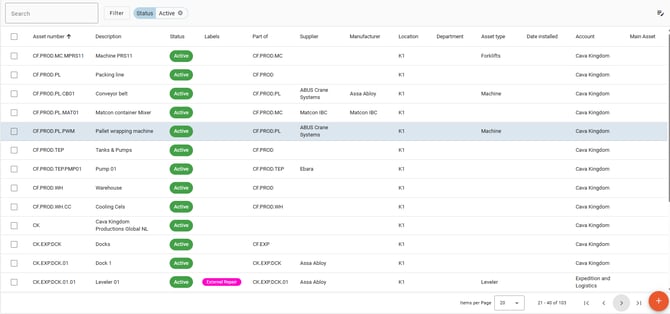
Button Functions
Various buttons are available at the top of the page:
|
Knop |
Functie |

|
Click the filter button to set various filters and refine the search results. |
 |
When an asset that is in service is selected, click the search button to go directly to this asset in the Asset tree structure. |

|
Use this button to edit the details of the selected asset(s). |

|
Use this button to create a copy of an existing asset. This function is useful when creating a new asset that, for example, only differs from another asset by its serial number. All information entered for the original asset is copied. This button is only available when an asset has been selected by selecting the checkbox in the left-hand column of the asset row. |

|
Use this button to take the selected asset out of service. An asset that has been taken out of service is no longer displayed in the general asset list or the Asset tree structure. This may occur, for example, when an asset has been sold or replaced. This button is only available when an asset is selected. You can filter for assets that have been taken out of service. |

|
The trash can with an upward arrow is the button used to put an asset back into service. This can be seen by a change in its status. This button is only available when an asset is selected. |

|
Click this button to create a breakdown work order, work order, or preventive maintenance model. These options are only available when an asset is selected. |

|
The export button allows you to export the assets currently displayed in the list based on any selected filter(s) to Excel. You can export the file in XLS or XLSX format. |

|
Click the print button to print the (filtered) asset list or save it as a PDF. |

|
The preview button shows or hides the preview pane on the right-hand side. When an asset row is selected and you click the preview button, the preview pane opens on the right. The 'Details' tab displays a number of asset details, while the 'Asset History' tab displays the asset's history. Clicking 'More Details' at the bottom opens the asset detail page. You can also open the preview pane by clicking an asset row once. Image: Preview pane on the right  |
Creating a new asset
Click the orange '+' action button at the bottom right to create a new asset.

After clicking the orange button at the bottom right, the window shown below opens, allowing you to create a new asset. Enter the information for the new asset in the various fields. The only required field is the asset description. If an asset administrator is used, that field is also required. If no asset code is entered, McMain Online automatically generates a code for the asset.
Image: 'Create Asset' window
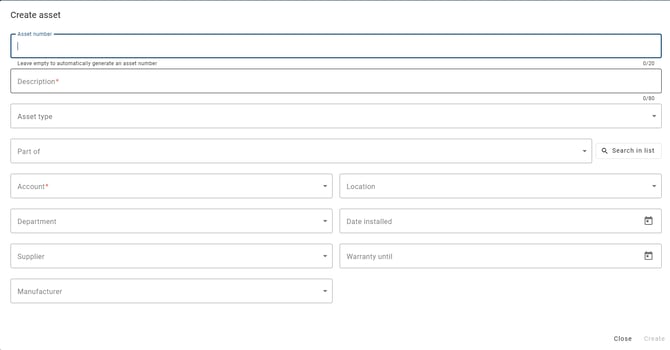
The following characters can be used for the asset code:
- Letters A-Z (uppercase only)
- Numbers 0-9
- Periods (.), hyphens (-), underscores (_), and spaces
An error message appears if unsupported characters are entered.