
The 'Asset Tree Structure' page under 'Assets' in the menu displays assets in their hierarchical structure. The page provides various options, such as moving assets, creating new assets, viewing asset details, and performing several actions on assets.
Contents
General
An Asset tree structure consists of the various assets and departments within a company, organized in a hierarchical structure. This page contains several of the same buttons as the All Assets page.
Image: 'Asset Tree Structure' page
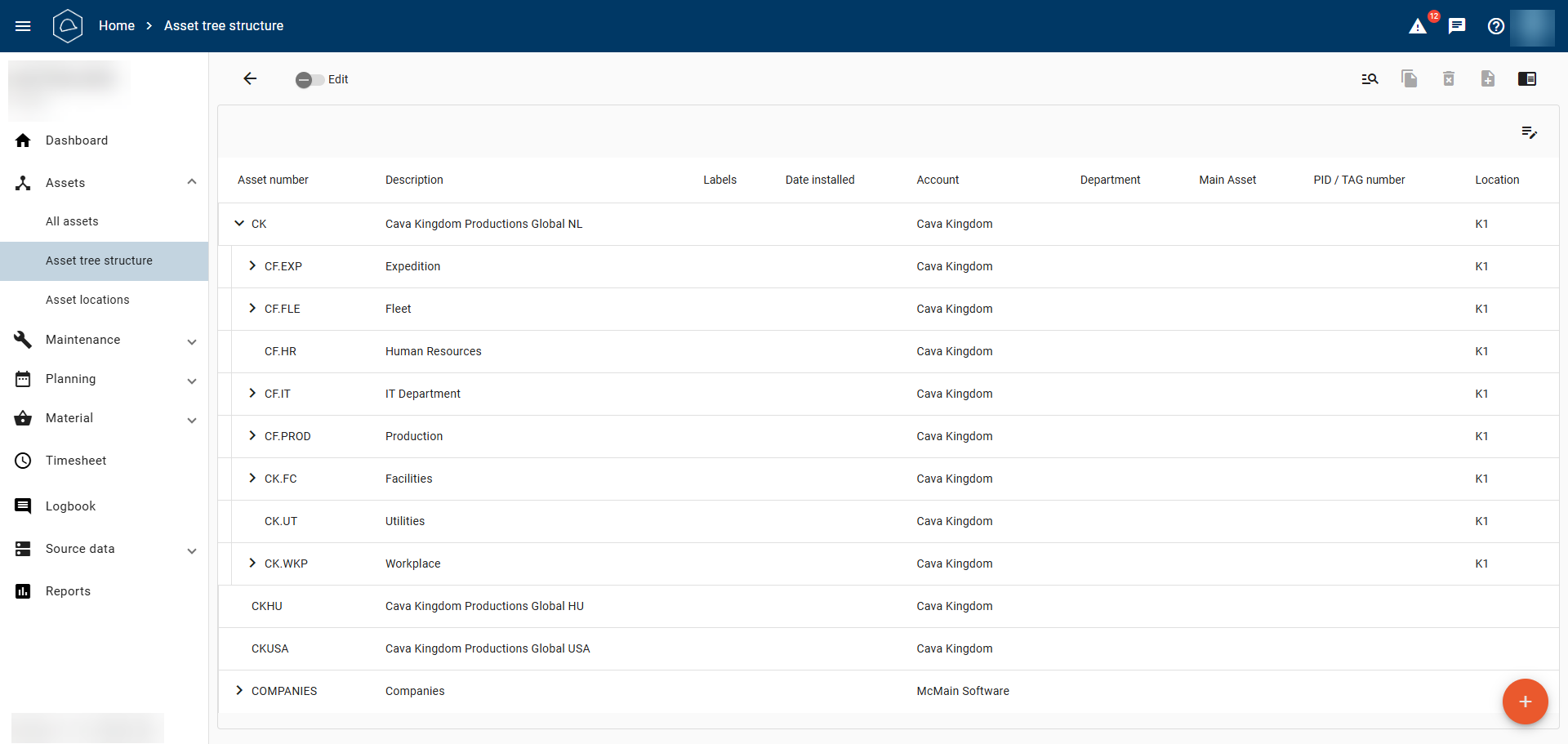
Image: Expanded Asset tree structure
Creating new assets
The orange '+' button at the bottom right of the page can be used to create new assets. If an asset is selected before creating a new asset, McMain Online automatically links the newly created asset to the selected asset (the new asset is placed below the selected asset).
Image: Creating a new asset using the orange button at the bottom right
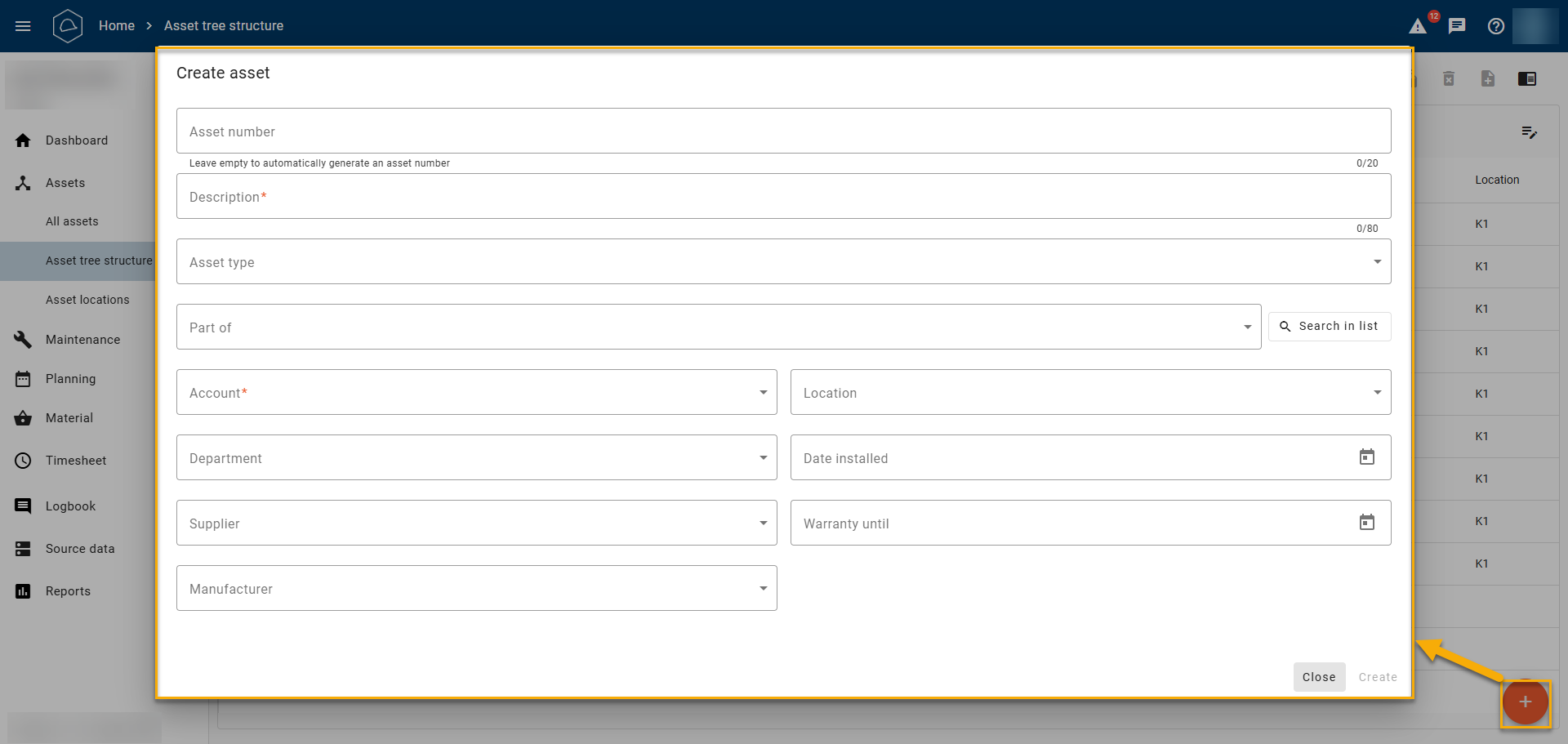
Modify Asset Tree Structure
Dragging an asset in the Asset tree structure moves it to a different position within the structure. To enable dragging, turn on the 'Edit' toggle at the top of the page. Use the drag indicator to move an asset within the Asset tree structure.
|
Button |
Function |
|
|
The 'Edit' toggle in this position means that assets cannot be dragged to another position in the Asset tree structure. |
 |
The 'Edit' toggle in this position means that an asset, including its underlying assets, can be dragged to a new position in the Asset tree structure. |

|
Drag indicator. This is only visible when 'Edit' is enabled and is located at the beginning of the asset row. Click and hold it with the left mouse button to drag the asset, including its underlying assets, to another position in the Asset tree structure. Image: Drag indicators on the left 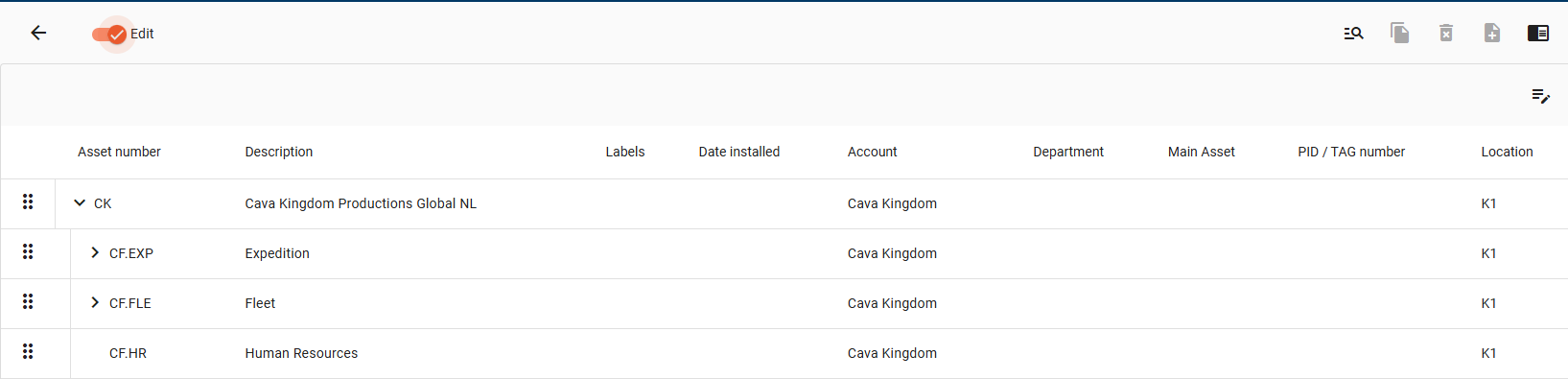 |

When an asset is dragged onto another asset, it becomes part of that asset. Within each hierarchical branch, assets in the Asset tree structure are ordered by asset number.
Image: Drag indicators on the left after toggling the Edit button 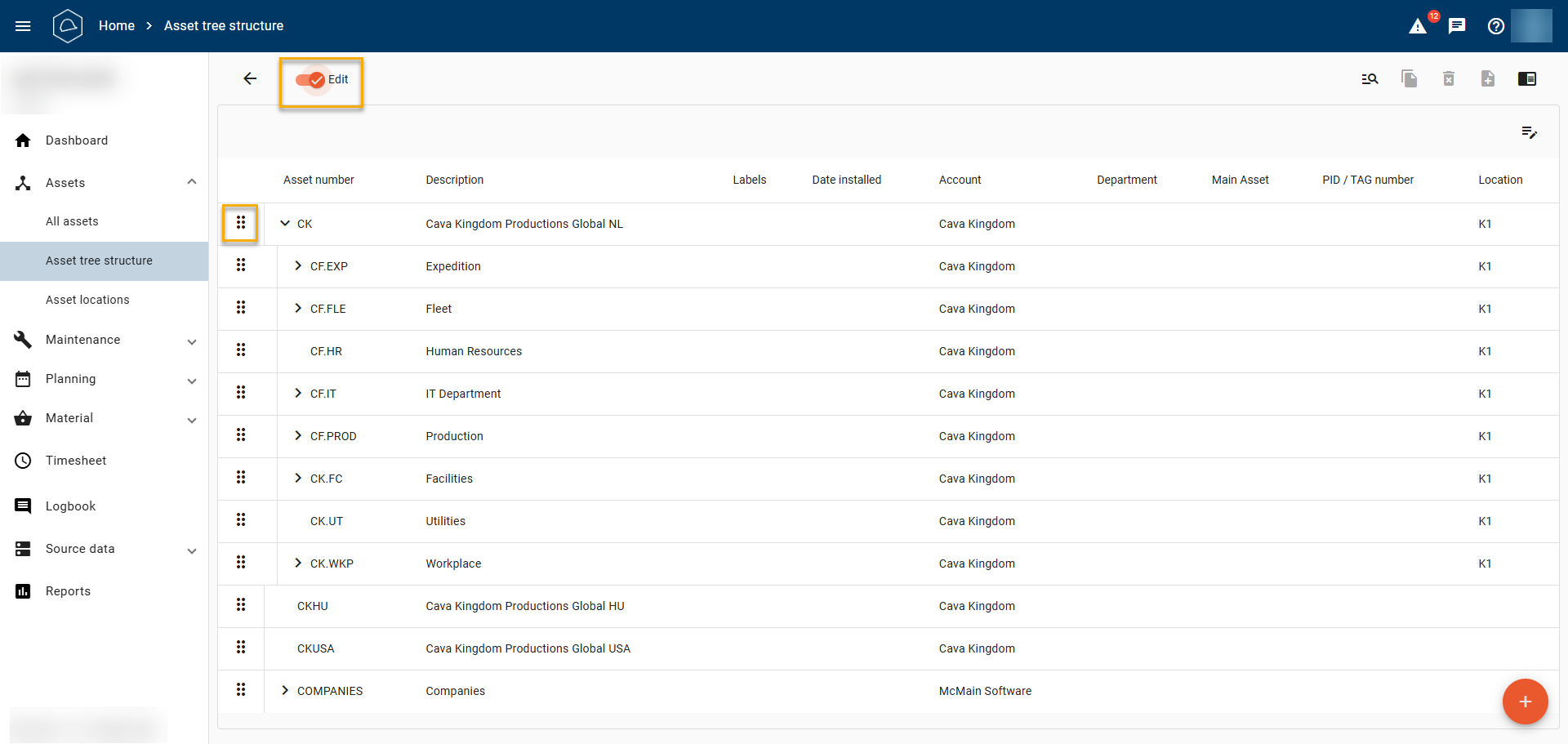
Button Functions
Several buttons are displayed at the top right of the page. The functions of these buttons are described in the table below.
Rechtsboven zijn een aantal knoppen te zien. In de tabel hieronder worden de functies van de knoppen beschreven.
|
Knop |
Functie |

|
Use this button to search for an asset by asset number or asset description. Then click 'Locate' to open the asset in the Asset tree structure. Image: Search window 'Locate Asset in Asset Tree' 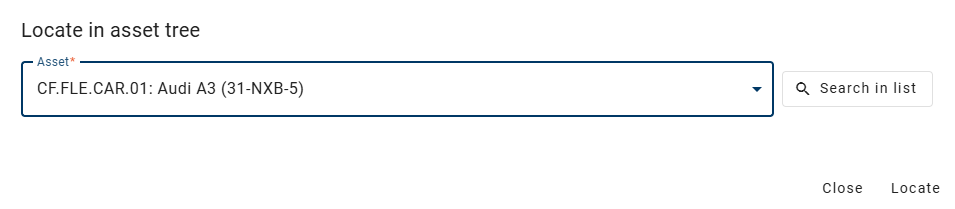
|

|
Use this button to create a copy of an existing asset. This function is useful when creating a new asset that, for example, only differs from another asset by its serial number. All information entered for the original asset is copied. This button is only available when an asset is selected by clicking its row in the Asset tree structure. Image: Selected asset (Green Building) in the Asset tree structure 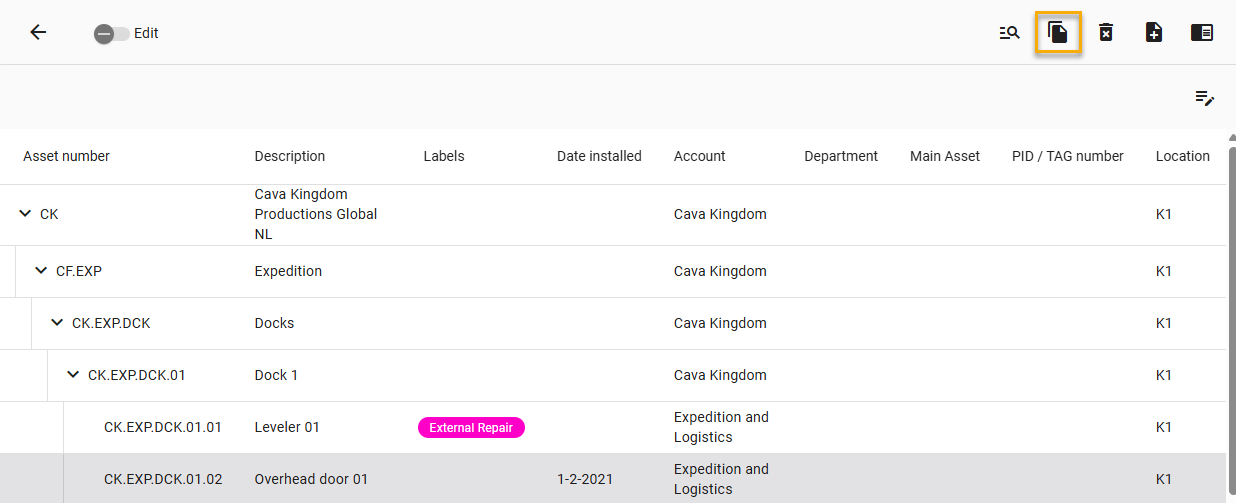
|

|
Use this button to take the selected asset, including its underlying assets, out of service. |

|
Click this button to create a breakdown work order, work order, or preventive maintenance model. These options are only available when an asset is selected. |

|
The preview button shows or hides the preview pane on the right-hand side. When an asset row is selected and you click the preview button, the preview pane opens on the right. The 'Details' tab displays a number of asset details, while the 'Asset History' tab displays the asset's history. Clicking 'More Details' at the bottom opens the asset detail page. You can also open the preview pane by clicking an asset row once. Image: Asset details 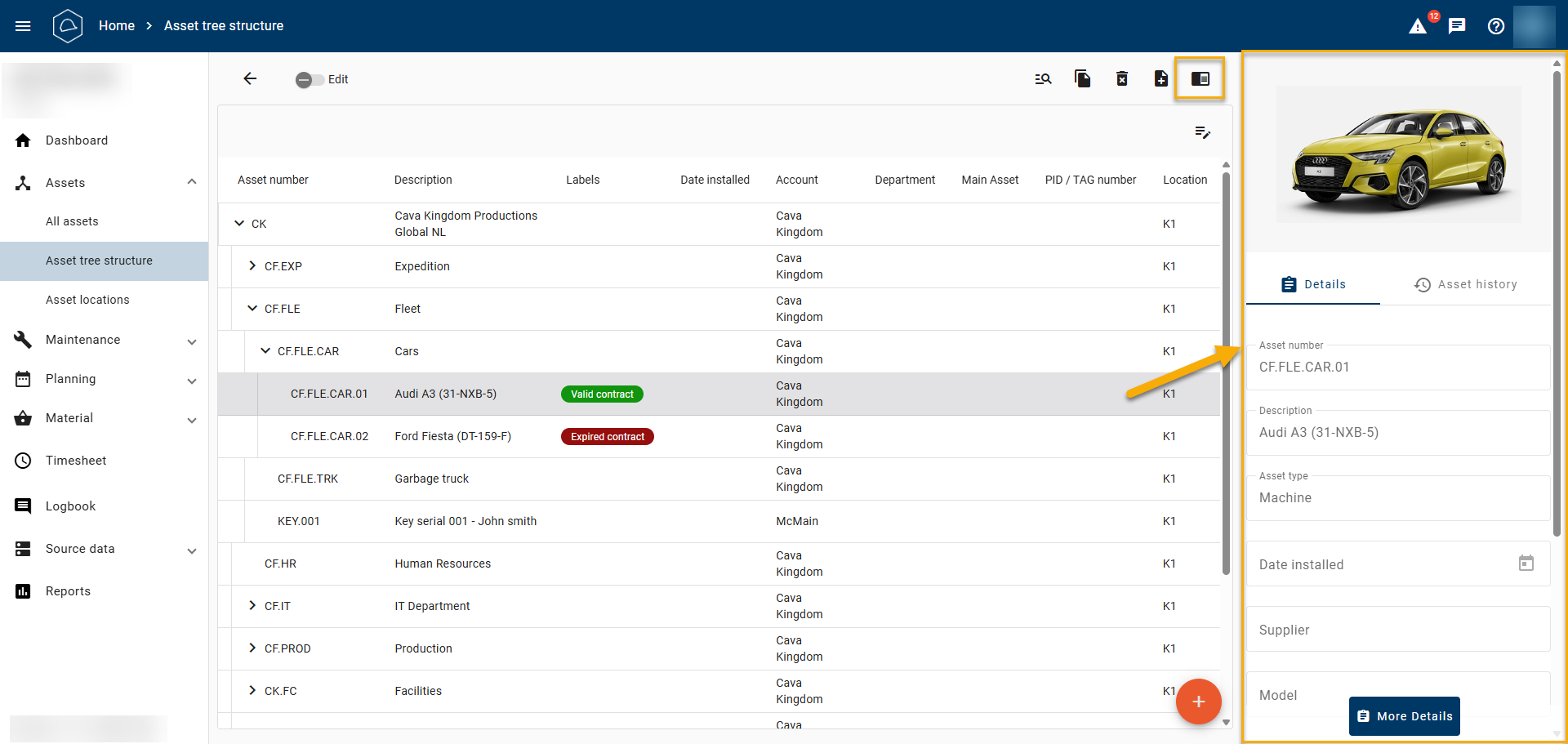
|