
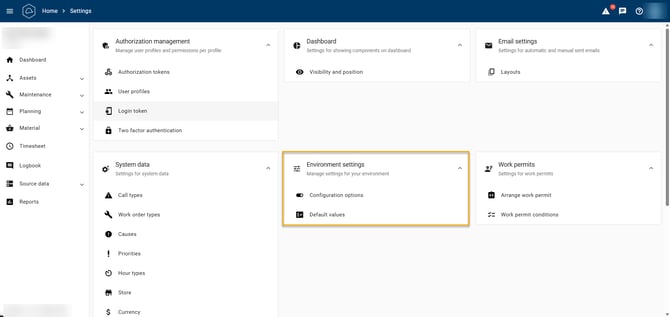
Under Environment Settings, you can enable or disable features in McMain Online or configure default values. Environment Settings in McMain Online contains two options: Configuration Options and Default Values. Both are explained in this article.
Image: Environment Settings in McMain Online
Configuration Options
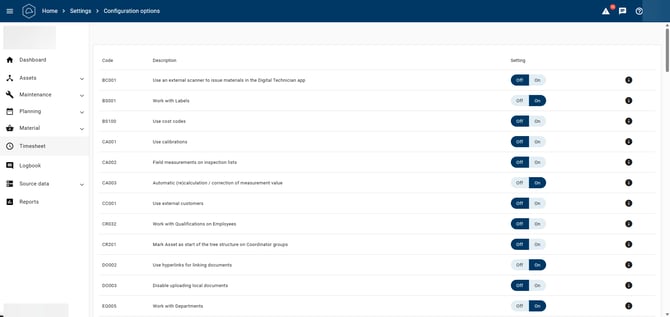
On this page, you can enable or disable features in McMain Online.
Each row also contains an information button. Clicking this button displays a short description of the feature.
PLEASE NOTE! Making changes on this page can have far-reaching consequences. We recommend consulting the McMain consultant involved with your company if there are one or more features you would like to use that are not currently enabled.
Image: Configuration Options in McMain Online
It is also important to note that not all configuration options are available to everyone. The license levels from which each feature is available are shown in the ‘License level’ column in the table below. The following abbreviations apply:
SA = System Administrator. Only a McMain employee can enable this option. Contact your McMain consultant for more information.
LT = Light version (also available with a Team or Pro version) (Can only be configured by the McMain System Administrator)
TM = Team version (also available with the Pro version)
PF = Only available with the Pro version
The table below lists the various options under ‘Configuration Options’.
| Code | Description | License level | Short explanation |
|---|---|---|---|
| AT001 | Use Audit Trail | PF+SA | Makes it possible to record all changes to configured fields in the database, allowing you to see exactly when values were changed and by whom. |
| BC001 | Use an external scanner for item issues in McMobile | LT | Makes it possible to use an external barcode scanner to scan additional fields, such as account/customer and items, to speed up the item issue process. |
| BS001 | Use labels | TM | Use labels to link additional labels to assets, WOs and items. These labels are displayed on the corresponding detail pages and list views. |
| CA001 | Use calibrations | TM | Inspection details can be classified as Calibration (Calibrations / ISO17025). Calibrations can be completed for each WO. |
| CA002 | Field measurements on inspection lists | TM | A field measurement can be added to calibrations to determine a deviation from the value to be calibrated. |
| CA003 | Automatic (re)calculation / correction of measurement value | TM | Makes it possible to correct or calculate a value before it is used in the calibration / field measurement comparison. |
| CC001 | Use external customers | TM | When external customers are used, references to Accounts will change to Customers, and additional address details can be viewed on the customer pages. |
| CR032 | Use Qualifications for Employees | TM | Use Qualifications to link Qualifications, Certificates or Diplomas to Employees, allowing WOs to be assigned to Employees who are qualified to perform them. |
| CR201 | Set an asset as the start of the Asset tree structure for Coordinator Groups | TM | Sets an asset as the start of the Asset tree structure for Coordinator Groups. When the Asset tree structure is first opened, the tree is expanded to the specified asset. |
| DO002 | Allow hyperlinks for documents | TM | Use hyperlinks to link documents on the internet or intranet. |
| DO003 | Block uploading local documents | TM | Prevents local files from being uploaded when adding documents. |
| EQ005 | Use Departments | TM | Use Departments to link Departments to Assets. |
| EQ021 | Use Tool Management | TM | Tool management allows assets to be designated as tools and tools, in the form of assets or asset types, to be linked to a procedure. These are also displayed on WOs generated from that procedure. In McMobile, assets can be scanned to use them as tools on a WO. |
| EQ022 | Use Asset Technical Specifications | LT | Use Asset Technical Specifications to define specifications such as width, height and temperature for each Asset. The available Technical Specifications can be configured for an Asset Type. |
| EQ032 | Use Logbook page | TM | Use the Logbook page to view logged information for assets and WOs. |
| EQ053 | Allow WO creation to be blocked for an asset | TM | WO creation is blocked for assets for which this option is enabled. Preventive WOs, projects and maintenance models can still be created for these assets. |
| EQ061 | Link employees to assets | TM | Adds the option to link employees to assets. One or more employees can be linked to an asset, and the option to create links can be disabled. This can be configured for the asset type. Assets without an asset type cannot be linked to an employee. |
| EQ062 | Use administrators for Assets | PF+SA | Makes it possible to specify an administrator and backup administrator for Assets. They can then be assigned to WOs generated from Maintenance Models. |
| EQ071 | Use Asset Locations | TM | Makes it possible to link Assets to Asset Locations defined in Master Data. This replaces the free-text ‘Location’ field on the Asset detail page. |
| EQ072 | Move multiple assets simultaneously | TM+EQ071 | Makes it possible to change the location of multiple assets simultaneously, provided the relevant checkbox is selected for the asset. Note: This only applies to the Move Assets feature in McMobile. Changing multiple locations using bulk editing in McMain Online remains available regardless of this setting. |
| EQ073 | Populate ‘Part of’ based on location when moving assets in bulk | PF+SA | Makes it possible to link an asset to an asset location. Assets moved to this location will have this asset set as their new ‘Part of’ asset. |
| EQ081 | Use Main Assets | TM | Use Main Assets to maintain visibility of the underlying Assets that are part of them. For each Asset Type, you can specify whether Assets of that type are Main Assets. An additional field containing the name of the Main Asset is displayed on an underlying Asset. |
| EQ091 | Use Firmware | TM | Makes it possible to keep track of Firmware versions and update dates for Assets. Firmware can also be changed for multiple Assets simultaneously from the list view. |
| EQ101 | Use Spare Parts Lists | LT | Use Spare Parts Lists on Assets to specify which items/materials an Asset consists of. |
| EQ121 | Use financial depreciation for Assets | PF | Makes it possible to specify a depreciation term for Assets and Asset Types. |
| EQ122 | Use replacement policy for Assets | TM | Makes it possible to specify a lifespan and replacement date for Assets. |
| EQ130 | Use lending management | PF | Lending management makes it possible to create a lending request. Assets can be added to a lending request. These assets will have the status ‘On loan’ while the lending request is active. |
| EQ141 | Use Asset Type category ‘Vehicle’ | TM | Makes it possible to mark an Asset Type as the ‘Vehicle’ category. Additional vehicle information fields become available on the detail page of assets with this Asset Type. Two additional dashboard cards for expiring inspections are also displayed. |
| EQ172 | Populate ‘Part of’ based on location when moving assets in bulk | SA+PF+EQ072 | Makes it possible to link an asset to an asset location. Assets moved to this location will have this asset set as their new ‘Part of’ asset. |
| EQ901 | Enable bulk editing of Parent Asset and Account | SA | Makes it possible to edit Parent Asset and Account in bulk. Please note: This can cause issues in the Asset tree structure; there is no guarantee that correct structures will be retained. |
| MA004 | Use item locations | TM | Makes it possible to create item locations. A default location can be selected for each item. |
| MA020 | Use supplier-specific currencies | TM | A currency can be specified for each supplier. Amounts in the supplier's currency will always be converted to amounts in your own currency based on the current exchange rate. |
| MA026 | Link an Account to purchase order rows | TM | Makes it possible to link an Account to individual purchase order rows. No actual costs are booked to it. When purchasing for a WO, a different Account cannot be entered for individual purchase order rows; the Account of the purchase order is always used. |
| MA031 | Use procurement mandate for purchase orders | TM+SA | Each purchase order can only be activated by an employee authorized to approve the amount of the purchase order. If the currently logged-in employee does not have the required permissions, they can only request activation from an employee who is authorized to do so. |
| MA032 | Use Purchase Groups | TM | Makes it possible to create and edit Purchase Groups and assign employees and purchase orders to a Purchase Group. |
| MA036 | Warning when total costs are equal to or less than 0 | SA | Displays a warning when the total cost of goods is equal to or less than 0. |
| MA043 | Purchase material for Projects | PF | Makes it possible to purchase material for a Project and issue it directly to the Project. |
| MA070 | Use requests for quotation (RFQ) | TM | Makes it possible to create a request for quotation (RFQ) from a purchase order and send it to suppliers. |
| MA100 | Use multiple stores | PF+MA120 | Manage multiple stores per site. Items can be linked to one or more stores. Purchasing, stock management and item issues can be handled separately for each store. |
| MA110 | Use goods receipts | TM | Goods receipts can be created for purchase orders based on the items ordered on the purchase order. The quantities received are added to the current stock of the received items. |
| MA120 | Use multiple locations per item | TM+MA004 | Multiple locations can be specified for each item within the store. The item page provides an overview of all locations for the item and the corresponding current stock. For each item on item issues and goods receipts, a location can be selected where the item stock is updated. |
| MA140 | Use invoice verification for purchase orders | TM+SA | Invoice registrations can be created for purchase orders, allowing costs incurred on the purchase order based on the ordered items to be charged to the corresponding WO. |
| MA150 | Invoice registration on PO | TM | This option allows invoices to be created for a purchase order. Invoice costs can be posted via the purchase order to a WO and the corresponding asset or an Account. |
| MA151 | Invoice registration on WO | TM | This option allows invoices to be created for a WO. These invoices are not linked to a purchase order. Invoice costs are posted to the corresponding WO and associated asset. |
| MA201 | Record sales price for item | TM+CC001 | The sales price of an item is used to record material costs on a WO that can be charged to a customer. |
| MA301 | Automatically complete item issues upon creation | LT | When an item issue is created, it is also automatically completed, skipping a verification step. |
| MA401 | Enable sync flag when activating purchase order | SA | Enables the sync flag when activating a purchase order. |
| N3 | Use PAT pages/interface | TM,SA | Use PAT pages to view, create and update PAT inspections. |
| PM019 | Use detailed Maintenance Model and inspection details history | SA | Automatically stores a history of Maintenance Models and inspection details on assets when they are related. |
| PM051 | Interface can generate WO from Maintenance Model | PF | Makes it possible to link an interface to a Maintenance Model. The Maintenance Model then generates WOs based on the interface instead of an interval. |
| SY001 | Mandatory fields in User Settings | PF+SA | Enables the ‘Screen Settings’ menu option under Settings, where users can make a number of fields mandatory or optional. |
| WO003 | Use downtime | LT | Use downtime to keep track of asset downtime on the WO detail page. |
| WO012 | Use work permits | TM+-WO112 | Makes it possible to link work permits to a WO so they must be signed when the WO starts and when it is completed. |
| WO015 | Use Plan Groups | TM | Makes it possible to create and edit Plan Groups and assign WOs and preventive Maintenance Models to a Plan Group. |
| WO016 | Use Crews | TM,SA | Makes it possible to create and edit Crews, assign employees to a Crew, and assign WOs and preventive Maintenance Models to a Crew. |
| WO017 | Use Coordinator Groups | TM | Makes it possible to create and edit Coordinator Groups, assign employees to a Coordinator Group, and assign WOs and preventive Maintenance Models to a Coordinator Group. |
| WO020 | Use Shifts | TM | Makes it possible to assign employees, WOs and Maintenance Models to Shifts. |
| WO035 | Use Preparation | TM | Preparation makes it possible to place WOs in Preparation. It is also possible to indicate whether the WO has been Prepared. |
| WO042 | Breakdown cause mandatory | LT | Displays an error message if no breakdown cause has been entered when completing a breakdown WO on the detail page. |
| WO043 | Downtime mandatory | LT+WO003 | Ensures that the ‘Downtime’ checkbox is selected by default. The user must therefore either enter downtime or clear the checkbox when there is no downtime. |
| WO044 | Logbook feedback mandatory | LT | Displays an error message when a WO is completed if no Logbook rows have been added to the WO on the Logbook tab by a user. |
| WO045 | Inspection list must be completed in full | LT | Displays an error message when an inspection list is present on a WO and has not been fully completed on the WO detail page. |
| WO046 | Meter reading mandatory when a meter is linked | LT | Displays an error message when a meter is linked to a WO and no meter reading has been recorded on the detail page. |
| WO048 | Media on inspection details | LT | Allows media to be uploaded to and viewed on inspection details. Uploading is only possible from McMobile; viewing is possible from both McMobile and McMain Online. |
| WO049 | Inspection detail marked Not OK sets asset out of service | TM | When this option is enabled, the asset linked to an inspection detail is set to ‘Out of Service’ when the inspection detail is assigned ‘Not OK’ and the WO is completed. |
| WO056 | Allow breakdown WOs to be scheduled after creation | PF | Makes Execution Date and Employee optional for breakdown work orders, allowing them to be scheduled after creation. |
| WO100 | Use the Graphical Planboard | LT | The Graphical Planboard page can be used to schedule WOs for each employee or move them to another day. |
| WO103 | Use employee team on a WO | WO100 | Allows multiple people to be scheduled for a WO from the Planboard and displays this on the WO detail page. |
| WO104 | Show overdue WOs based on planned start date (Planboard) | WO100 | Shows overdue WOs based on the planned start date instead of the target date. |
| WO105 | Use Read-Only Planboard | SA+-SA | Makes it possible to give users access to the Graphical Planboard without allowing them to schedule WOs. |
| WO108 | Use capacity planning | TM | Allows the available number of capacity hours per day to be specified for each employee. This capacity can be viewed on the Timesheet page when this feature is used, and capacity planning can also be used on the Graphical Planboard. |
| WO109 | Warning when available capacity is exceeded (Planboard) | WO108+WO100 | Displays a warning when a WO is scheduled on the Graphical Planboard and the employee's available capacity is exceeded. The pop-up allows the user to schedule the WO anyway. |
| WO110 | Use signature for machine release in McMobile | LT | Displays fields for machine release on the WO detail page in McMobile. |
| WO111 | Release mandatory on WO in McMobile | WO110 | Displays an error message when machine release has not been fully completed for a WO in McMobile. |
| WO112 | Use Release Checklist | LT+WO110+-WO012 | Adds an additional release step when completing a WO. For each asset, you can specify whether a release is mandatory before WOs can be completed and add checklists that must be checked off and signed by two authorized persons in McMobile. |
| WO131 | Create WOs externally and block scheduling | PF | When scheduling WOs through the OpenAPI, an option can be enabled to prevent the scheduling of the WO from being changed within McMain Online. |
| WO160 | Use Reason Codes | PF | Makes it possible to configure and use Reason Codes. |
| WO161 | Select reason when choosing N/A in inspection list | PF+WO160 | Makes it possible to configure Reason Codes of the Procedures type. When N/A is selected for an inspection detail, selecting a reason is mandatory. |
| WO181 | Use comparison operators for field measurements, calibration and verification measurements | PF+CA001,PF+CA002 | Makes it possible to specify a comparison operator when entering a field measurement, calibration or verification measurement. |
| WO182 | Use generic Procedures | PF | Makes it possible to link an asset only when completing an inspection detail. Which assets can be linked depends on the Asset Type and the settings specified on the Procedure row. |
| WO210 | Use Helpdesk Groups | TM | Makes it possible to create and edit Helpdesk Groups and assign employees and calls to a Helpdesk Group. |
| WO230 | Link multiple WOs to a Call | PF | Makes it possible to link multiple WOs to the same call. |
| WO252 | Show GPS location on Call | LT | Makes it possible to specify a GPS location when creating a call through the Digital Reporter. |
| WO280 | Specify reason when cancelling a Call | PF+WO160 | Requires the user to enter a reason when cancelling a call. Reason Codes of the ‘Cancel Call’ type can be used for this. |
| WO300 | Use Timesheet page | TM | Allows the Timesheet page to be opened to view the hours booked to WOs for each employee per week and, when configured, to book indirect hours without linking a WO. |
| WO303 | Make time registration on WOs mandatory | LT | Displays an error message when a WO is completed if no hours have yet been booked to the WO. |
| WO341 | Use fixed rates for Hour Types | TM | Makes it possible to specify a fixed rate for each Hour Type. For an Hour Type, you can choose between a percentage of the rate of the employee booking hours to that Hour Type or a fixed rate independent of the employee's rate. |
Default Values
On this page, you can configure default values for various parts of McMain Online.
Image: Default Values page
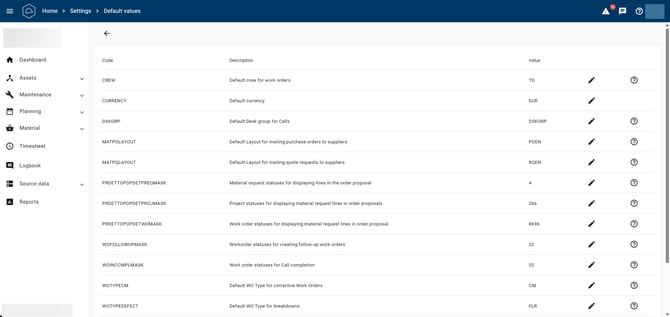
Each row also contains an information button. Clicking this button displays a short description of the feature.
The default value for each setting can be changed using the pencil icon.
PLEASE NOTE! Making changes on this page can have far-reaching consequences. We recommend consulting the McMain consultant involved with your company if there are one or more default values you would like to change.
It is also important to note that not all default values are available to everyone. The license levels from which each default value is available are shown in the ‘License level’ column in the table below. The following abbreviations apply:
SA = System Administrator. Only a McMain employee can enable this option. Contact your McMain consultant for more information.
LT = Light version (also available with a Team or Pro version) (Can only be configured by the McMain System Administrator)
TM = Team version (also available with the Pro version)
PF = Only available with the Pro version
The table below lists the various settings for which default values can be configured.
| Code | Description | License level | Short explanation |
|---|---|---|---|
| CRDGRP | Default Coordinator Group for WOs | SA,TM+WO017 | This default setting is only available to the McMain System Administrator. If you would like more information, contact the McMain consultant involved with your company. The Coordinator Group that should be selected by default for WOs can be configured here. Configuration option ‘WO017 - Use Coordinator Groups’ must be enabled for this default value. |
| CURRENCY | Default currency | LT | The currency to be used by default can be selected here. Note: A different currency from the default currency can be selected for suppliers. The currency setting for a supplier does not affect the default currency configured here. |
| DSKGRP | Default Helpdesk Group for Calls | SA,TM+WO210 | This default setting is only available to the McMain System Administrator. If you would like more information, contact the McMain consultant involved with your company. The Helpdesk Group that should be selected by default for Calls can be configured here. Configuration option ‘WO210 - Use Helpdesk Groups’ must be enabled for this default value. |
| MATPOLAYOUT | Default layout for e-mailing purchase orders to suppliers | TM | Default layout for e-mailing purchase orders to suppliers. |
| MATPQLAYOUT | Default layout for e-mailing requests for quotation to suppliers | TM+MA070 | The layout to be used by default when e-mailing requests for quotation to suppliers can be configured here. |
| MATSTORE | Default store | PF+MA100 | The store that should be selected by default when a new entity requiring a store is created can be configured here. Configuration option ‘MA100 - Use multiple stores’ must be enabled for this default value. |
| WOINCCMPLMASK | WO statuses for completing a Call | TM | The WO statuses at which a Call linked to the WO will be completed can be configured here. |
| WOMDET | Use the womdet table to track material consumption on a WO | SA | This default setting is only available to the McMain System Administrator. If you would like more information, contact the McMain consultant involved with your company. Using womdet (the WO material detail table in the database) is the improved method for recording material consumption on a WO and replaces the use of the preq table for this purpose. |
| WOTYPECM | Default WO Type for corrective WOs | TM | The default WO Type to use when creating a corrective WO can be configured here. |
| WOTYPEDEFECT | Default WO Type for breakdown work orders | TM | The default WO Type to use when creating a breakdown work order can be configured here. |
| WOTYPEPJ | Default WO Type for project WOs | TM | The default WO Type to use when creating a project WO can be configured here. |
| WOTYPEPM | Default WO Type for preventive WOs | TM | The default WO Type to use when creating a preventive WO can be configured here. |