
Introduction
This article describes an example workflow for creating and processing a breakdown work order, followed by creating and processing a follow-up work order (WO). The example involves a high-speed roll-up door that has been damaged and is no longer functioning.
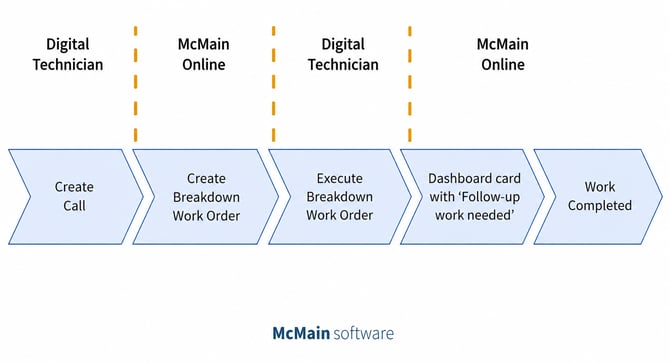
Image 1: Breakdown and follow-up work orders
Table of Contents
- Introduction
- Step 1: Create a call for the damage (McMobile)
- Step 2: Create a breakdown work order (McMain Online)
- Step 3: Process the breakdown work order and mark follow-up work (McMobile)
- Step 4: Dashboard card 'Breakdown Work Orders: Follow-up Work Required' (McMain Online)
- Step 5: Complete the follow-up work order (McMain Online)
Step 1: Create a call for the damage (McMobile)
One of the roll-up doors at our fictional company has been damaged after being hit by a forklift. Initially, the door was still able to close, but it can no longer be opened. Naturally, this is a serious issue.
To report the problem, the employee who discovered it creates a call for this asset using McMobile.
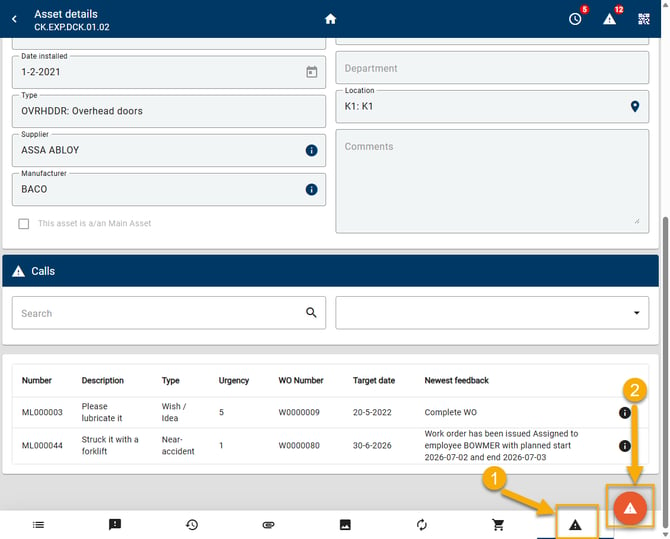
Image 2: The high-speed door in question, which was hit
In the call dialog, the employee enters the available information. The more details that are provided, the easier it will be to resolve the issue. At this stage, however, only limited information is available.
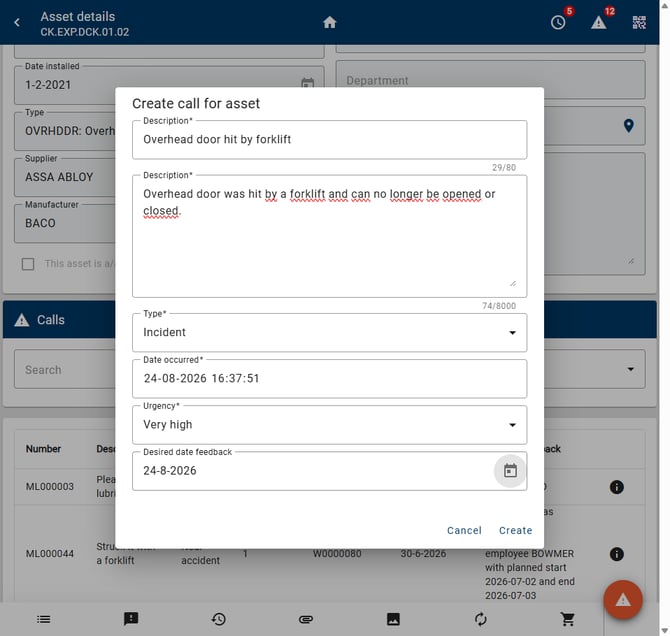
Image 3: Create a call on the high-speed door
The employee successfully creates the call and receives a confirmation.
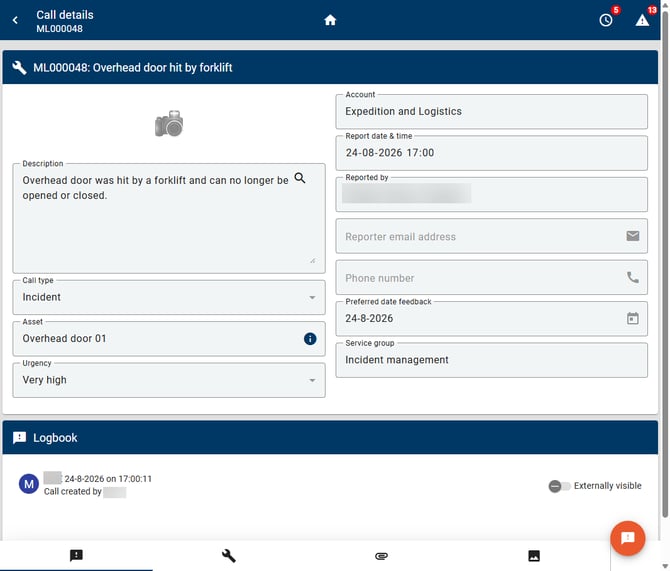
Image 4: Confirmation of call creation
Step 2: Create a breakdown work order from a call (McMain Online)
One of our employees has just created a call indicating that the roll-up door can no longer be opened.
To resolve the issue, we create a breakdown work order for this asset in McMain Online (MMO). This immediately identifies the issue as urgent and indicates that it should preferably be resolved today.
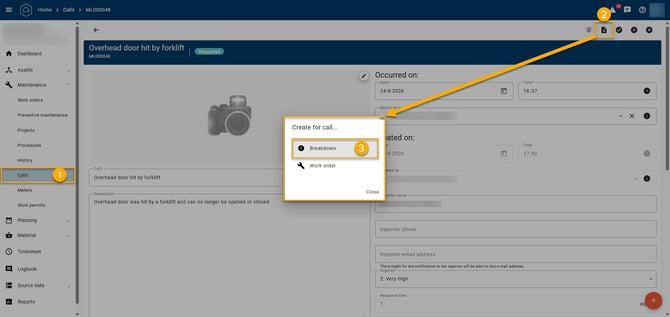
Image 5: Creating a breakdown work order on a call
In the breakdown work order dialog, we enter the available information needed to resolve the issue. Again, the more information that is entered, the better. At this point, however, only limited information is known.
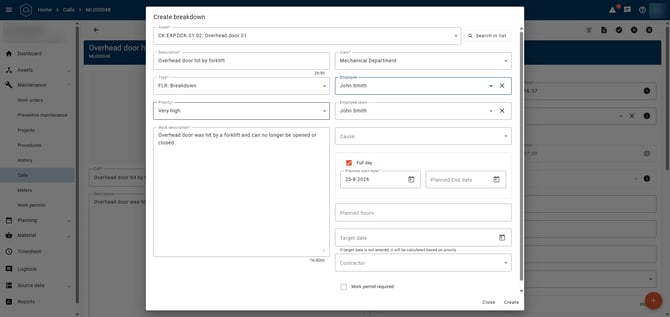
Image 6: Creating a breakdown work order on the high-speed door
Step 3: Process the breakdown work order and mark follow-up work (McMobile)
Since we suspect that the problem is mechanical, we assign the work order to one of our mechanical maintenance technicians. The employee is assigned to the breakdown work order and today's target date is set, allowing the technician to immediately see the work in their schedule.
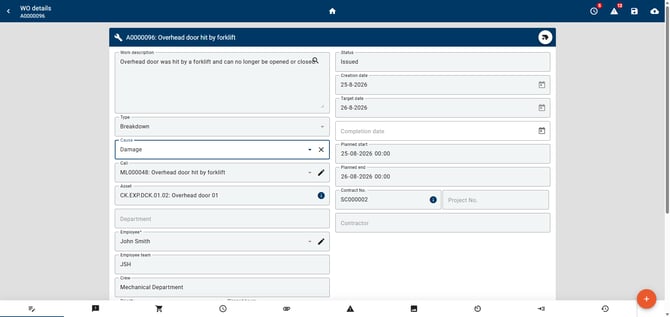
Image 7: The Created Breakdown Work Order on the High-Speed Door
The mechanical technician responds to the breakdown work order, performs the necessary inspection, and replaces several components. Unfortunately, the door still does not open. Further investigation reveals that the impact has also damaged several electrical components.
The technician has completed all mechanical work and therefore marks the work order as requiring a follow-up work order before setting its status to Completed.
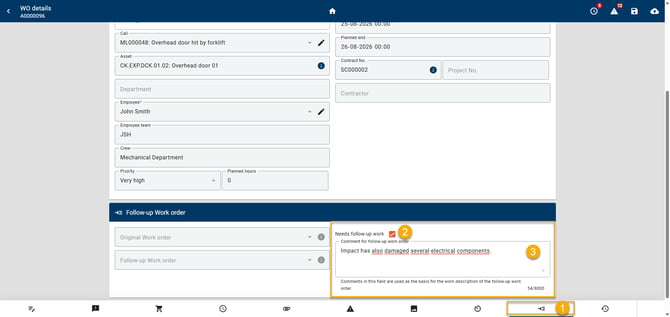
Image 8: Completed Work Order
Step 4: Dashboard card 'Breakdown Work Orders: Follow-up Work Required' (McMain Online)
Since additional electrical work is required, the maintenance planner can identify this from the dashboard card 'Breakdown Work Orders: Follow-up Work Required'.
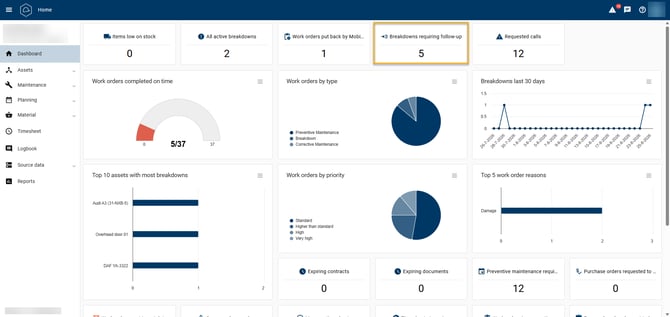
Image 9: Breakdown Work Orders: Follow-up Work Required dashboard card
Clicking this dashboard card opens a dialog displaying an overview of all breakdown work orders that still require follow-up work.
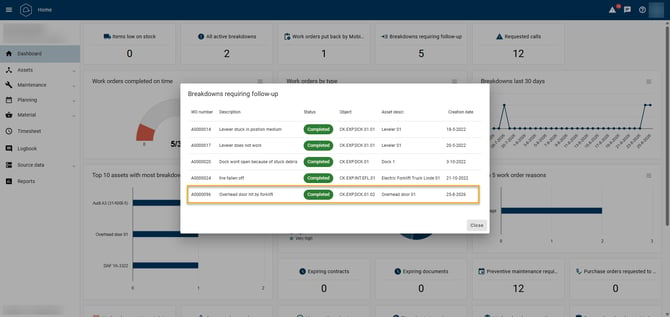
Image 10: Select the Breakdown Work Order in the dashboard card dialog.
The maintenance planner opens the Follow-up Work tab on the work order and changes the comment to describe the work that needs to be carried out. This comment will become the work description of the follow-up work order, so it is recommended to provide a clear and detailed description.
Next, the maintenance planner clicks the orange action button to create the follow-up work order. This opens the Create Follow-up Work Order dialog.
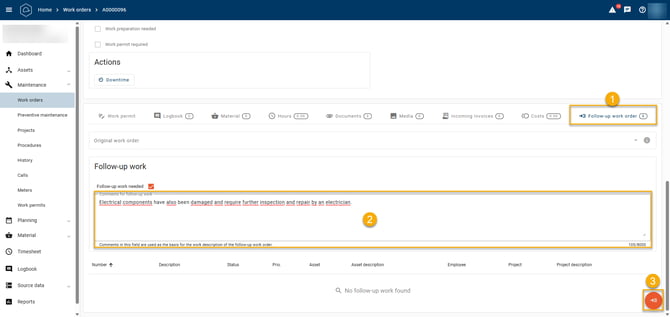
Image 11: Creating a follow-up work order
The required information for the follow-up work order is entered, after which Create can be selected.
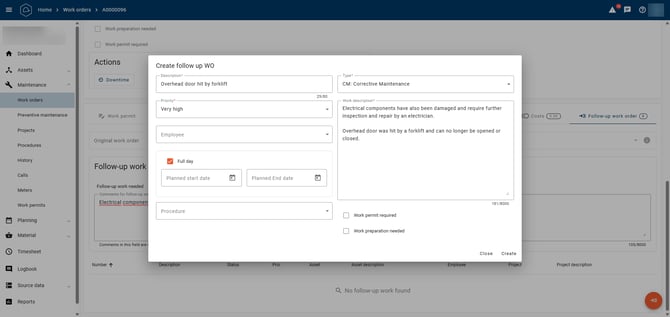
Image 12: Creating a follow-up work order dialog
Step 5: Complete the Follow-up Work Order (McMain Online)
A follow-up work order is essentially a prepared work order containing additional information and logbook entries. As a result, completing a follow-up work order is no different from completing any other work order.
In this example, the maintenance planner changes the crew and coordinator group from Mechanical to Electrical and then assigns the work order to an employee within the Electrical department. This enables the Electrical Maintenance department to continue where the Mechanical Maintenance department left off and, hopefully, resolve the breakdown.
If a previous work order exists, it can be viewed on the Follow-up Work Order tab. In this example, work order W0000083 is a follow-up work order for A0000096, which is clearly shown on this tab.
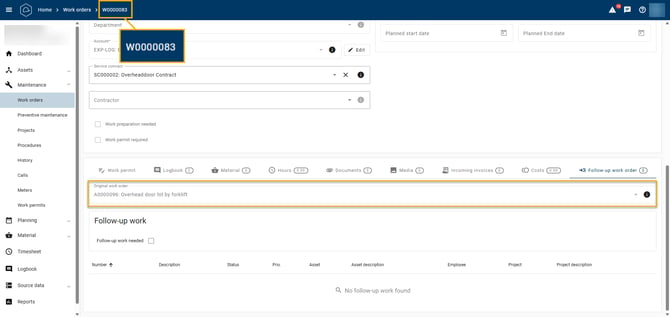
Image 13: Created follow-up work order
It is important to understand that follow-up work orders can be created repeatedly if necessary. If additional work is still required after completing the current follow-up work order, the technician can simply create another follow-up work order.
However, if this occurs frequently, it may be worth reviewing whether the work is being planned and executed as efficiently as possible.
For this example, we assume that all required work has been completed successfully and that the high-speed roll-up door is fully operational again.