To customize how the dashboard cards are displayed, follow the steps below (provided you have the appropriate permissions):
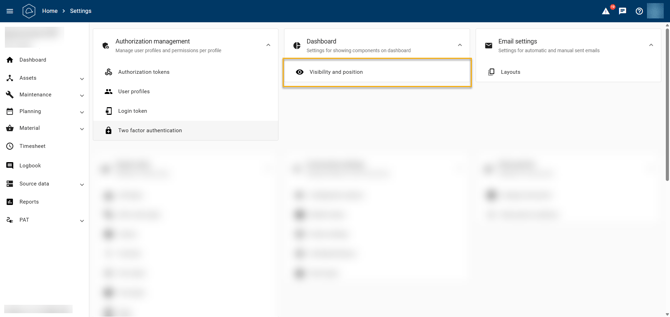
- Click 'Settings'.
- Select 'Visibility and Position'.
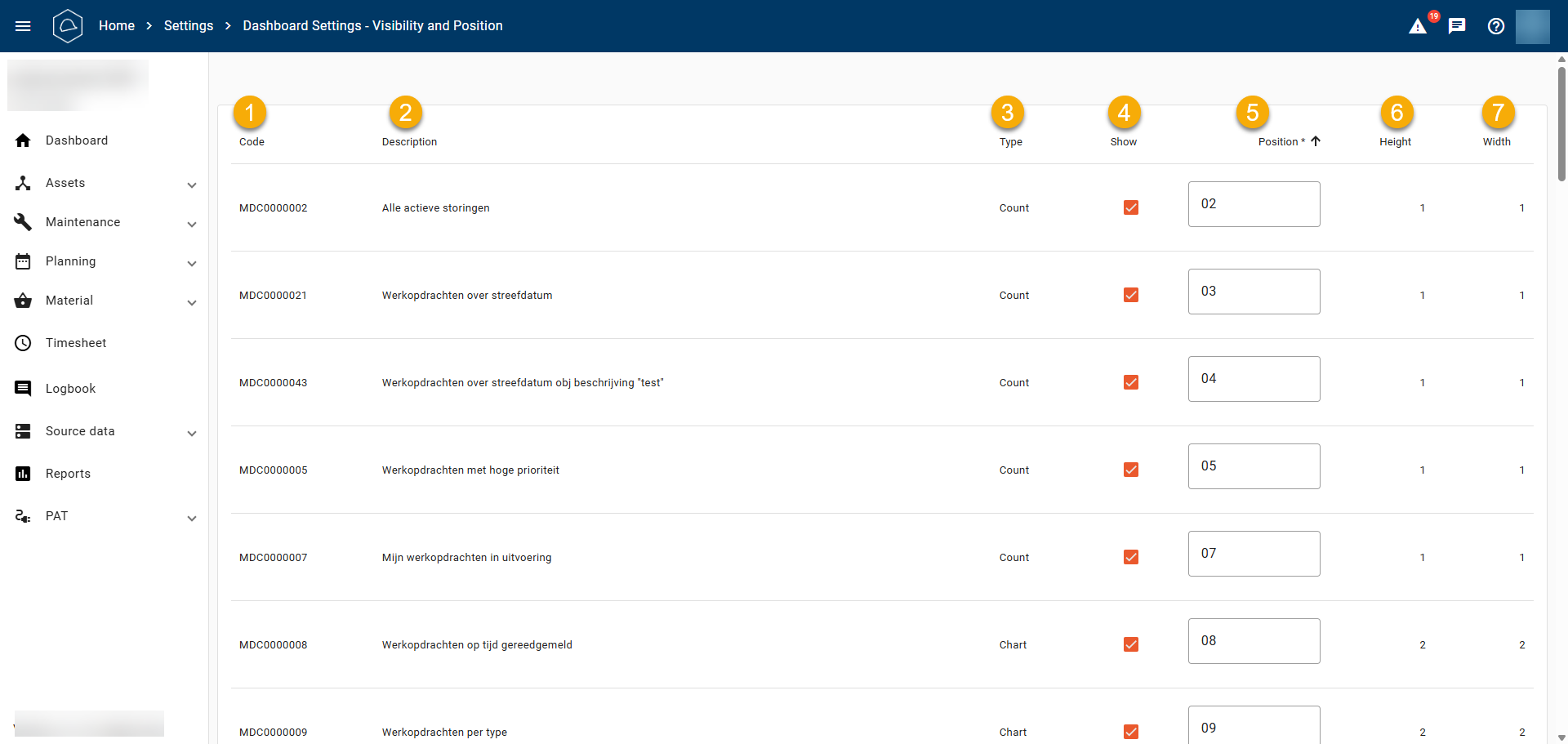
You are now in the 'Dashboard Settings' menu, where you will see a table with seven columns:
- Code: This is the unique identification code of the card.
- Description: Describes what the card displays.
- Type: Indicates whether it is a card or a chart.
- Show: Allows you to show (on) or hide (off) the card on the dashboard.
- Position: Enter the position where the card should appear on the dashboard. The dashboard is filled from left to right. For example, 01 is at the top left, 02 is to its right, and so on. When there is no more space on the current row, the following cards are placed below it.
- Height: Specifies how much vertical space the card occupies. For example, 1 means one card height, 2 means two card heights, and so on.
- Width: Specifies how much horizontal space the card occupies, similar to height.
This allows you to customize the dashboard to your preferences and display the information that is relevant to you.