Introduction
This article describes an example workflow from reporting a problem like a failure to closing a work order, including processing a purchase order.
The process is illustrated across multiple applications and assumes that your environment already contains data such as employees, assets, items, and suppliers.
Image: Process a work order from a call
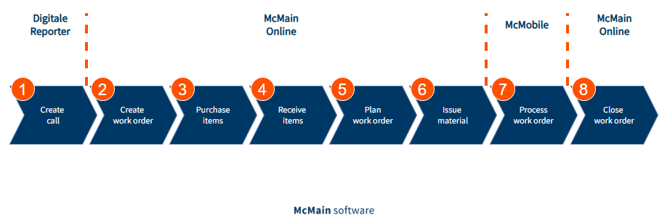
The following steps are covered in this article:
Step 1: Create call (Digital Reporter)
Calls can be created in:
-
Digital Reporter
-
Digital Technician
-
McMain Online
In this example, we'll start with a situation where a rearview mirrorthe call is created via Digital Reporter.
Instructions
-
Log in to the Digital Reporter app (Android / Apple / Browser).
-
Enter the environment code (visible in McMain Online, top left, starting with MC…).
-
Choose one of the following options:
-
Scan the QR code of an asset
-
Describe the asset
-
-
Enter all relevant call details.
-
Add media (photo or video, max. 100MB).
-
Enter reporter details.
-
Submit the call.
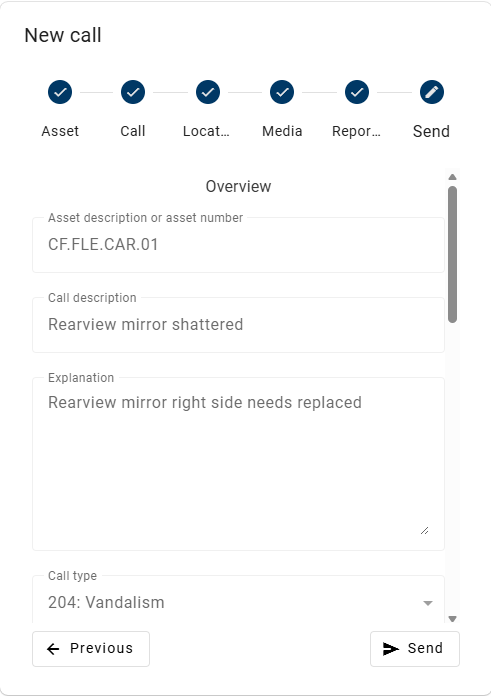
Image: call overview screen Digital Reporter
Step 2: Create work order (McMain Online)
Instructions
-
Log in to McMain Online.
-
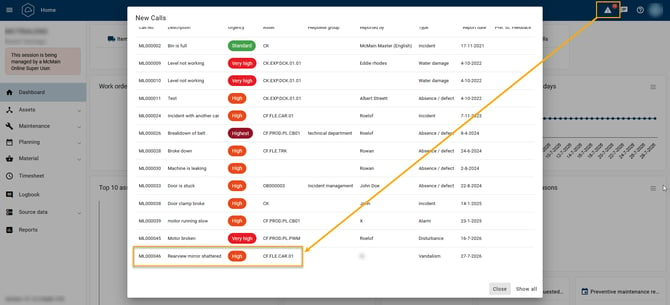
Navigate to:
Maintenance → Calls
(or use the top-right icon to view new calls)
Image: top right New Calls dialog
-
Open the call.
-
Click the 'Create for call...'
 button
 -
Select:
-
Breakdown (or Work order when less urgent)
-
-
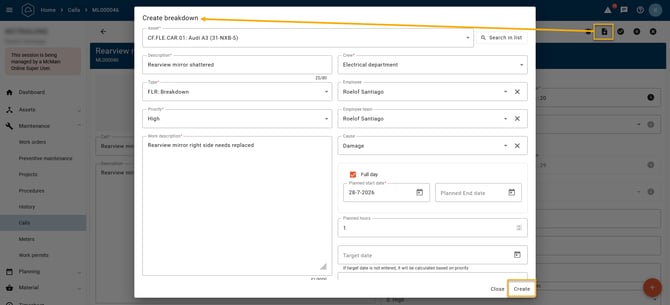
Fill in all relevant details.
-
Assign the work order to the employee that will do the work.
-
Click Create.
Image: steps 4-8, create a breakdown work order from a call
Step 3: Purchase goods (McMain Online)
Instructions
-
Open the work order.
-
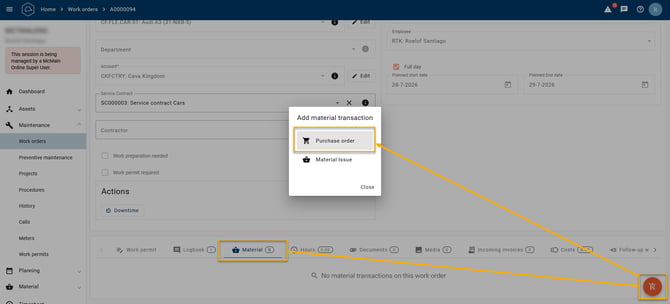
Go to the Material tab.
-
Click the orange action button → Purchase order.
Image: Create a Purchase order within a work order
-
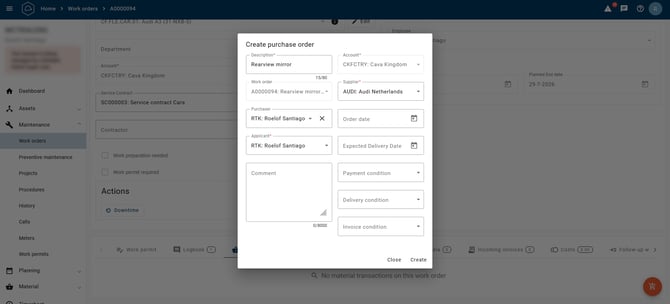
Fill in the purchase order details.
Image: Dialog for creation of the purchase order on the work order
-
Click Create.
-
Add items:
-
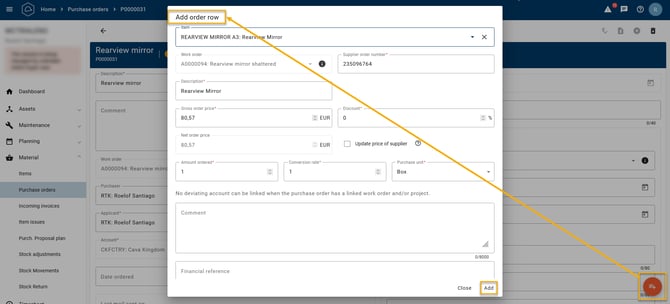
Click action button → Add order row
-
Select item
-
Fill in details
-
Click Add
-
-
Repeat adding order rows for all required items.
-
Activate the purchase order:
-
Click the Activate purchase order button

-
Step 4: Receive goods (McMain Online)
Instructions
-
Open the purchase order.
-
Go to the Receipt tab.
-
Click the orange action button.
-
Enter:
-
Receipt date
-
Delivery note number
-
-
Select received items.
-
Click Create.
✔ Stock is now updated
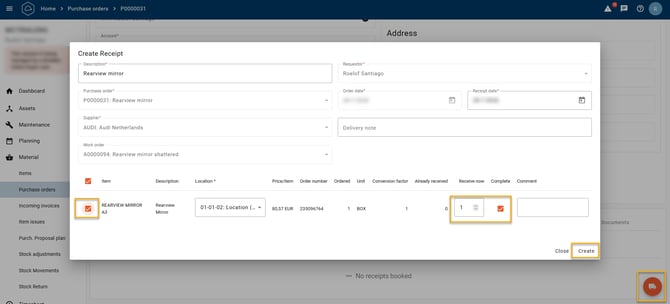
Image: Creating a receipt on a purchase order
Step 5: Schedule work order (McMain Online)
Instructions
-
Go to:
Planning → Planboard -
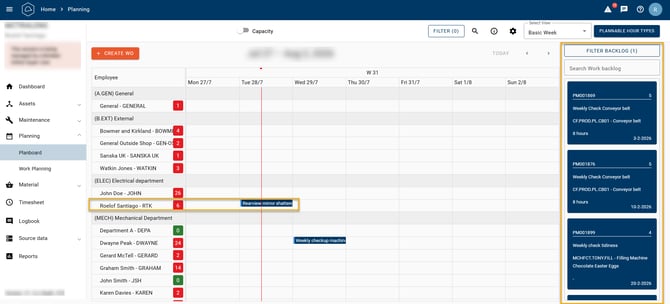
See the breakdown work order is already on the planboard in the row of the employee that will do the work on the date that was set on the breakdown work order.
(Work orders that are not assigned to an employee, can be searched and dragged from the work backlog on the right side of the planboard to the desired employee and date.)
Image: The breakdown work order is already on the planboard when employee was selected on the breakdown work order. The Work backlog is on the right side.
Step 6: Material issue (McMain Online)
Instructions
-
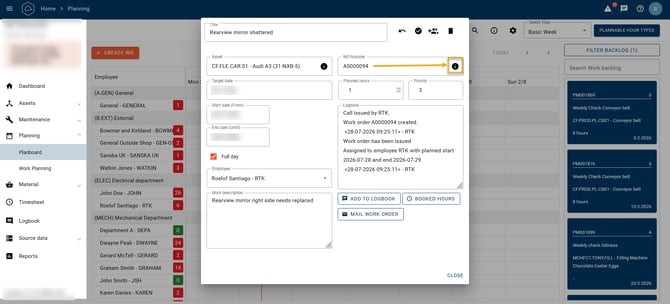
Open the work order from the planboard by clicking on it. A dialog will appear.
-
Open the work order from the dialog by clicking the information icon
 in the WO Number field in the dialog
 Image: Work order dialog on the planboard
-
Go to the Material tab .
-
Click the orange action button → Material issue
Image: Start a Material Issue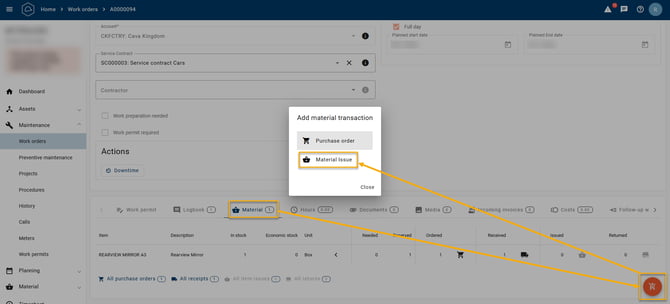
-
Enter a description.
-
Click Next.
-
Select required item(s) by searching and clicking on the line with the item. The item(s) is/are shown on the right side after selecting.
Image: Item is shown on the right side after selection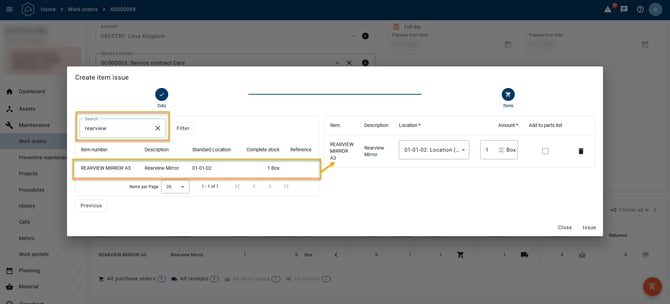
-
Verify quantities.
-
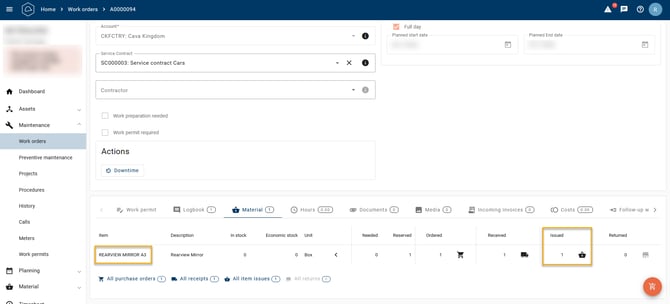
Click Issue. And now the item can be handed over to the employee doing the work on the work order.
Image: In the Material tab the item will now show as 'issued'
Step 7: Execute work order (McMobile)
Instructions
-
Log in to McMobile.
-
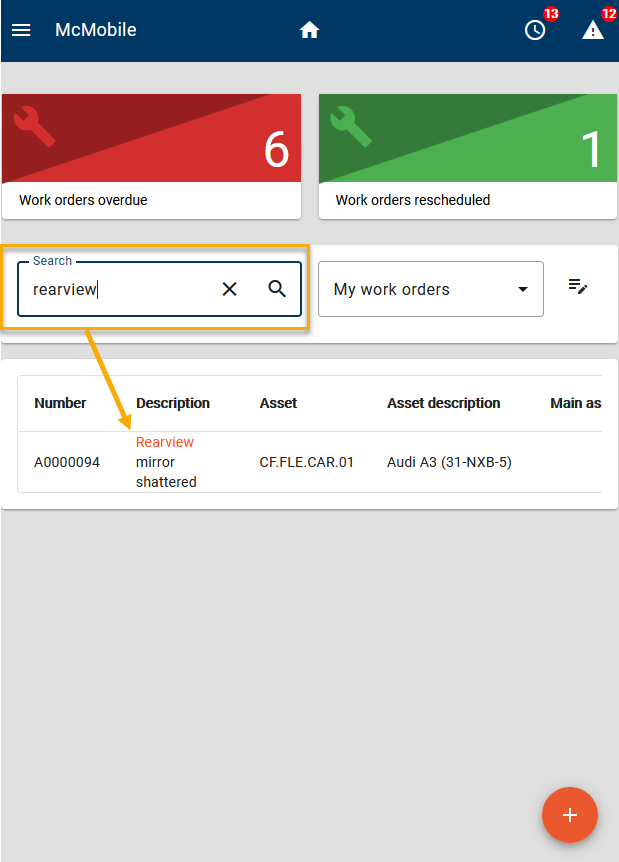
Search for the work order:
-
Work order number
-
Asset
-
Keyword
Image: search work order on keyword
-
-
Open the work order.
During execution
-
Perform the work
-
Add details such as:
-
Photos
-
Notes
-
Inspection list (whenever applicable)
-
Hours
-
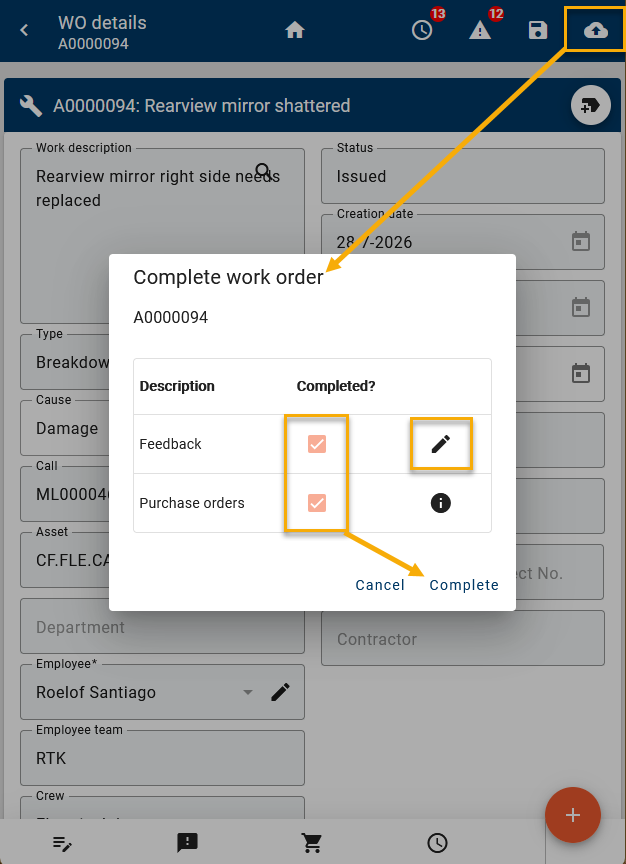
Complete the work order
-
Click the top-right action button
 and select Complete Work Order
 -
Enter required information
-
Complete the work order
Image: Completion of the workorder by the employee in McMobile
Step 8: Close work order (McMain Online)
Instructions
-
In McMain Online navigate to:
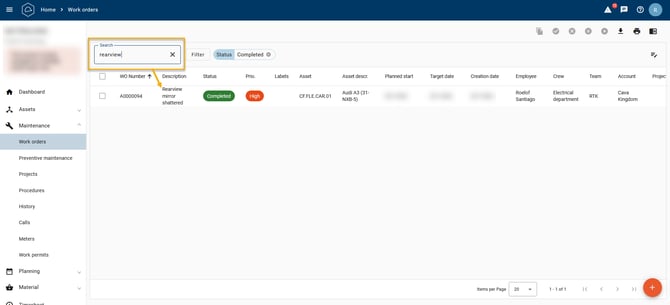
Dashboard > Work orders completed, not closed - Select the completed work order. If the list is long and the work order isn't shown, click the 'Show all' button at the bottom in the dialog, which will open the Maintenance > Work orders
-
Search if needed for the work order and open it.
Image: Searching on keyword for a completed workorder
-
Open the work order.
-
Verify execution details entered by the employee, that did the work like working hours, logbook comments, procedure processing etc..
-
When the details described by the employee are ok, click the Close
 icon.
icon.
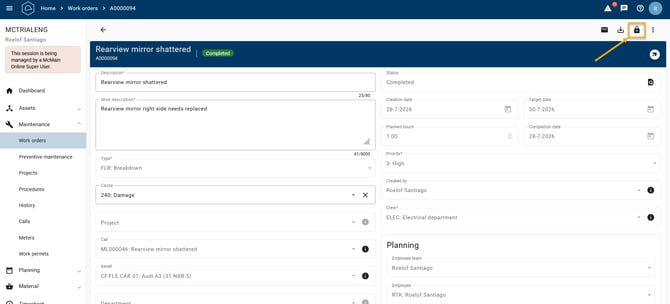
Image: Closing a single completed work order in McMain Online