
Introductie
The 'Work Orders' page under the Maintenance menu provides an overview of all work orders. On this page, you can search, filter, and sort by column. The page also provides options to perform standard actions, including bulk actions such as:
- Duplicating a corrective work order
- Issuing work orders
- Putting work orders on hold
- Cancelling work orders
- Completing work orders
Daarnaast biedt de pagina de mogelijkheid om:
- Create a work order
- Filter work orders
- Search for work orders
- Export the (filtered) list of work orders
- Print the (filtered) list of work orders
- Display a preview of a work order
- Add and remove columns
- Set the default sorting
- Adjust the number of work orders displayed
- Navigate through the result pages
Note: Work orders can be closed in bulk on the History page.
Work Orders List View
All work orders can be viewed in the 'Work Orders' list view. Information about the work orders is displayed in various columns, such as WO Number, Description, Status, Priority, Asset, Asset Description, Asset Location, Execution Date, Employee, etc.
Kolommen
You can choose which columns are displayed and in which order. Clicking the 'Customize Columns' button image (at the top right of the page) opens a dialog displaying all column names. These can be dragged with the mouse to the 'Selected Columns' field. You can also change their order by dragging them. After clicking 'Save', the selected columns are immediately displayed on the page. The column selection and order are personal settings and can be configured as desired by each user.
Navigation
The drop-down field at the bottom right of the page allows you to set how many work orders are displayed per page. You can choose to display 10, 20, 25, 50, or 100 work orders per page.
The arrow buttons can also be used to navigate between the pages of work orders.
Filtering
By default, the filter displays work orders with the following statuses:
- In preparation
- Prepared
- Issued

In addition, the 'Show only my work orders' filter is active.

This filter ensures that only work orders that meet one of the following conditions are displayed:
- The work order is assigned to you
- The work order has no coordinator group
- The work order is linked to your coordinator group
- If you do not have a coordinator group yourself, you will see all work orders
You can remove the default filters by clicking the close button on the right-hand side of the filter if you want a broader overview.

There are various options for filtering the list of work orders. Click the 'Filter' button to open the dialog containing all available filters.

You can filter by the following information:
|
Status |
Crew |
|
Priority |
Asset |
|
WO Type (work order type) |
Asset Location |
|
Employee |
Customer / Cost Center |
|
Employee Team |
Service Contract |
|
Shift |
Contractor |
|
Project |
Planning Group |
|
Required Qualifications |
Coordinator Group |
|
Maintenance Model |
Department |
|
Labels |
Procedure |
|
Past Target Date (checkbox) |
My work orders (checkbox) |
|
Restored from Digital Engineer (checkbox) |
|
|
Execution Date |
|
Search Field
The search field is located at the top left of the page.
You can enter a search term to find one or more specific work orders. The search field can be used to search by WO Number, Description, Asset, Asset Description, Asset Location, Asset Location Description, Status, Execution Date, Employee, and Department.
Create a New Work Order
A new work order can be created by clicking the orange 'plus' button at the bottom right of the page.

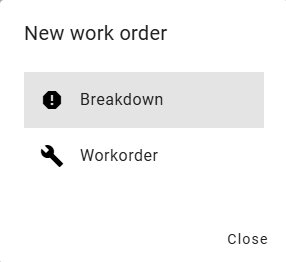
After clicking the button, you can choose from three different options. Click 'Breakdown' to create a breakdown work order. Clicking 'Corrective' creates a regular work order.
You can also select 'Preventive'. This creates a maintenance model and immediately generates the first work order. In the menu, click Maintenance and then Preventive Maintenance to view all maintenance models.
Button Bar
There are several buttons at the top right of the list view. Some actions can be performed in bulk. The function of each button is explained below. Depending on the configuration settings, certain buttons may or may not be visible.

Button |
Name |
Function |
 |
Duplicate |
This button becomes active when the checkbox for one corrective work order is selected. Clicking the button opens a dialog for creating a new work order. Certain information from the selected corrective work order is copied to the new work order. This makes it easy to create a similar work order. |
 |
Complete |
This button becomes active when one or more checkboxes are selected for work orders with the status Issued. The selected work order(s) can then be completed simultaneously. |
 |
Cancel |
This button becomes active when one or more checkboxes are selected for work orders with the status In Work Preparation, Prepared, or Issued. The selected work order(s) can then be cancelled simultaneously. |
 |
Put On Hold |
This button becomes active when one or more work orders with the status Issued are selected. The selected work order(s) can then be put on hold simultaneously. |
 |
Issue |
This button becomes active when one or more work orders with the status In Work Preparation, Prepared, or Issued are selected. The selected work order(s) can then be issued simultaneously. A dialog appears in which an (executing) employee and execution date can be selected for each work order. |
 |
Export |
Door te klikken op deze knop wordt er een Excel-bestand gedownload van alle werkopdrachten die op dat moment voldoen aan de gekozen filters. Er kan gekozen worden voor een XLS- of XLSX bestand. |
 |
|
Clicking this button allows you to print a list of all work orders that currently match the selected filters. |
 |
Show/Hide Preview Pane |
This button can be used to show or hide the preview pane. The preview pane is displayed automatically when you click a work order. |